
Gmail account pricing between vendors and forwarding steps.
Based on what we have going with the current vendor righ now. $80/200 Gmail accounts is $0.4/account.
If we are looking for a cheaper (extra Gmail adder PH worker) option maybe we could declare $0.2/account. And only pay per account.
Creation of accounts/hr.*$0.2 = $2/hr.
However, this is just a rough estimate since per experience 5SIM sometimes gives non-working numbers and sometimes generates the number for several minutes.
For the existing vendor websites I checked in the past here are some price ranges;
• SidesMedia: $1.99 - $2.99 per account
• GetPVA: $0.29 - $0.34 per account
• PVAAccountss: $0.15 - $0.25 per account
• BizPVA: $0.30 - $0.40 per account
• AccsMarket: $0.01 - $0.17 per account
• AppSally: $0.36 - $0.49 per account (Dead website)
• BulkBuyAccounts: $0.10 - $0.20 per account
• 123accs: $0.50 - $0.60 per account
• Accfarm: $0.29 - $0.39 per account
The cheapest is AccsMarket, where you can get Gmail accounts for as low as $0.01 per account. However, some of these accounts are not verified by phone and may have security issues.
Listed vendors with previous purchases.
Inquired:
- -2yo 100 gmail 150$ - PVAeshop +12135109004 (1st quarter of 2025 purchased new emails, very unresponsive vendor).
- $1.55 (average 2 yo) +27744593489 (2nd quarter of 2025, purchased new emails, but vendor is reselling the same accounts from another supplier).
- $2 fixed rate 2020/2023 +18472614033 (inquired only no purchase).
- PVAExpert +15708728185 (1_2 year old Gmail/ 100 gmail account only 400$).
Purchased:
- Naimul +8801710899530 (can sell very price low but accounts are always bad and vendor doesn't allow switching IP addresses, Vendor is also Gmail adder but was skipping steps in adding account, resulting in wrong password when logging in to CL).
- Hello Good (SMM) (Deleted Account) had good purchases but suddenly disappeared.
- Will check the inquired vendors as a replacement.
Gmail Forwarding Steps
The steps below will explain what to do when processing Gmail accounts to be added to the Database.
Requirements:
-
An Excel sheet of preferably Old Gmail accounts purchased from existing vendors.
- Vendor Naimul was good for a few months, but in the previous months, almost all accounts he provided failed to complete the setup process, by "failed" I mean, the account needs 2FA verification during login, gave an incorrect password, asking for 2FA when creating admin@parakeet.chat filter, and the vendor himself said switching IP address would compromise the account and end up failing. The vendor was also adding Gmails to the Database, but when I reviewed his process, I saw that he isn't switching IP addresses and not allowing to complete the password change step - so most added accounts had login issues. Replacement for unusable accounts is also very tight at between 18 - 24hrs.
- Vendor Hello Good was providing solid PVA emails, but the account was suddenly frozen and got deleted.
- Will try to look for a different vendor or use the previously acquired vendors to keep purchasing accounts; looking for new vendors comes with risk (even with existing vendors) of getting scammed.
-
After acquiring accounts, we can proceed to the next step.
Forwarding steps:
-
Open Chrome in a new blank profile.
-
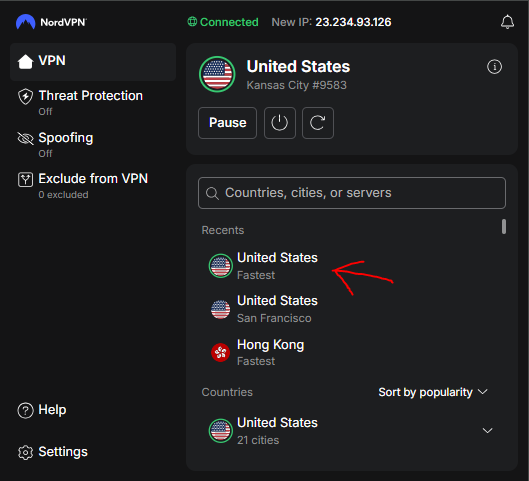
Install the NordVPN extension in Chrome to switch IP addresses before proceeding. (Jordan allows sharing his NordVPN credentials in 1PW, because only paid VPN addresses will work) After this, we can proceed to the next step.
-
Log in to SSHEasy using credentials available in 1PW.
-
After setting up Nord VPN (signed on). First, we need to make sure we can use the Gmail account by logging in. Go to your Excel sheet and use the login credentials. Here are shortcut links for convenience (some links also available in the SSH tool).
Log into Gmail and create filter
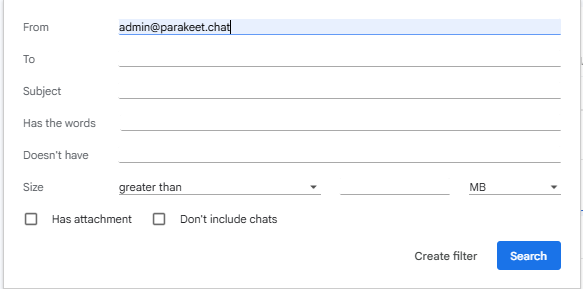
- First, log in to the Gmail account using the credentials from the Excel sheet. Then creating the filter for admin@parakeet.chat this will prevent forwarding messages from going into SPAM. This is VERY important to avoid forwarding confirmation issues.
- Go to Settings/Filters → click Create new filter
- Enter admin@parakeet.chat
- Click Create filter → Never send it to Spam
Sometimes this part asks for 2FA authentication; if it happens, just skip this email (log out), but note the error or authentication message first in the Excel file so we can ask for a replacement from the vendor.
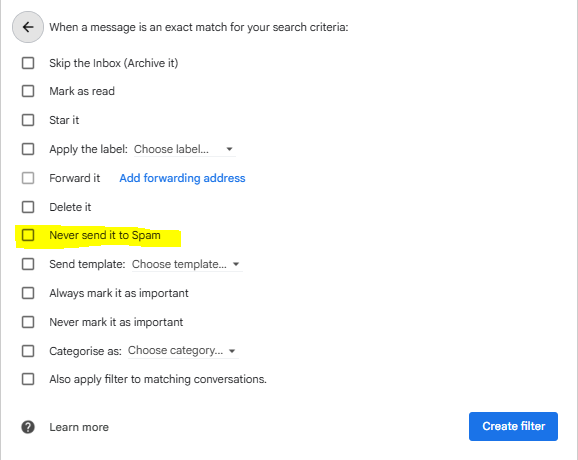
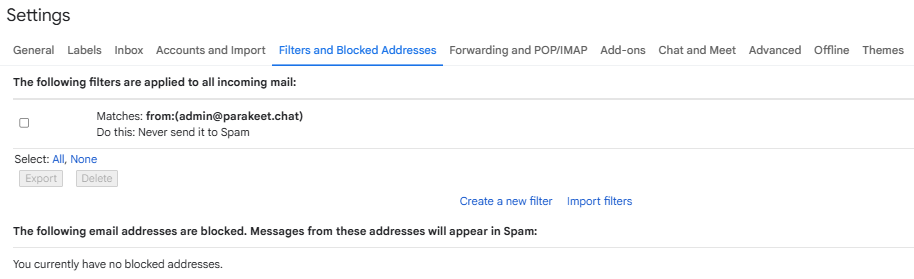
Assuming everything ran smoothly, and you have created a filter for admin@parakeet.chat. It will look like this.
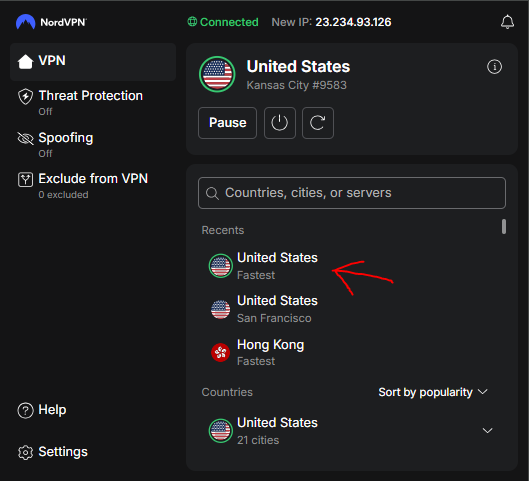
- After successfully creating the filter (and no 2FA was asked, which means we can use the account accordingly; it sometimes happens that creating a filter triggers 2FA authentication, which makes the account unusable for us), we then click the NordVPN browser extension and choose the fastest US address available.
Login to Gmail first before switching to a US IP
- I find this trick generates fewer 2FA errors to logging into the Gmail account first, then switching IP address.
- After that, log out of the account, then log in again while the US IP is selected (only done once).
- To switch IP, click the retry arrow in the extension.
SSHEasy and Forwarding steps
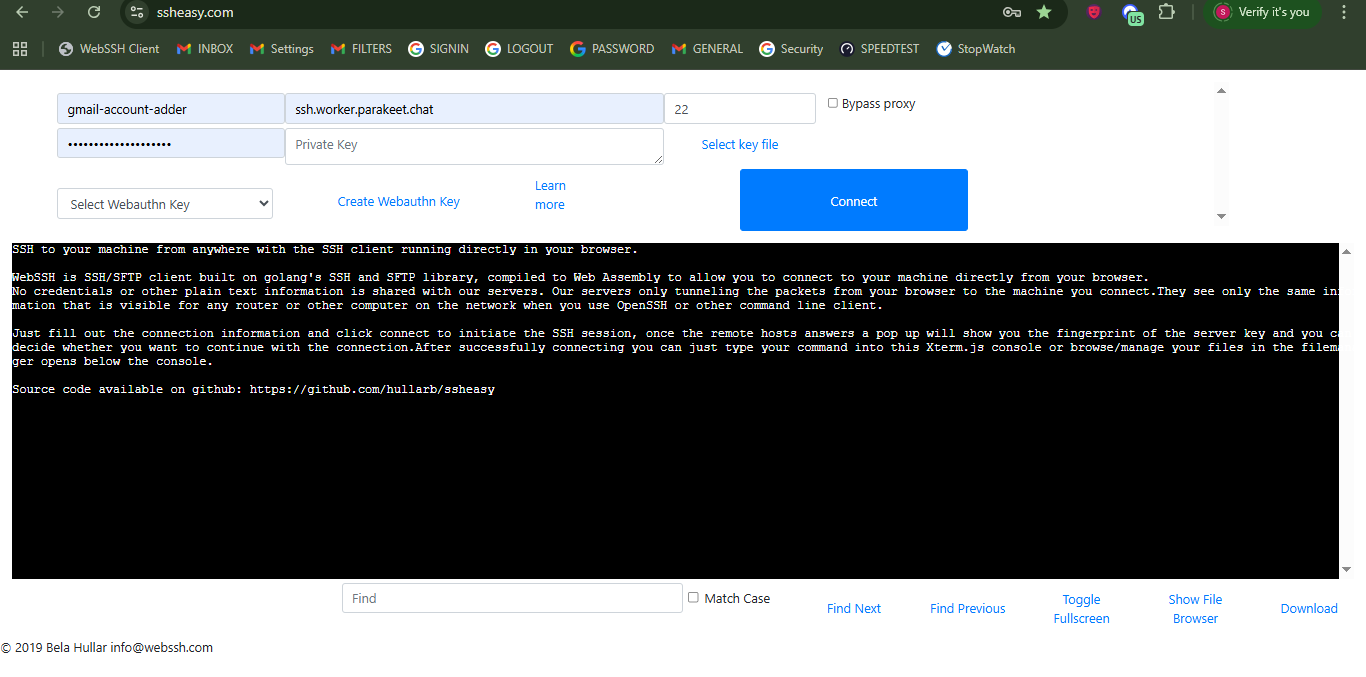
- To log into SSHEasy, go to https://www.ssheasy.com/
-
Enter the User/ Password/ and Host to Connect to. Credentials can be found in 1PW.
-
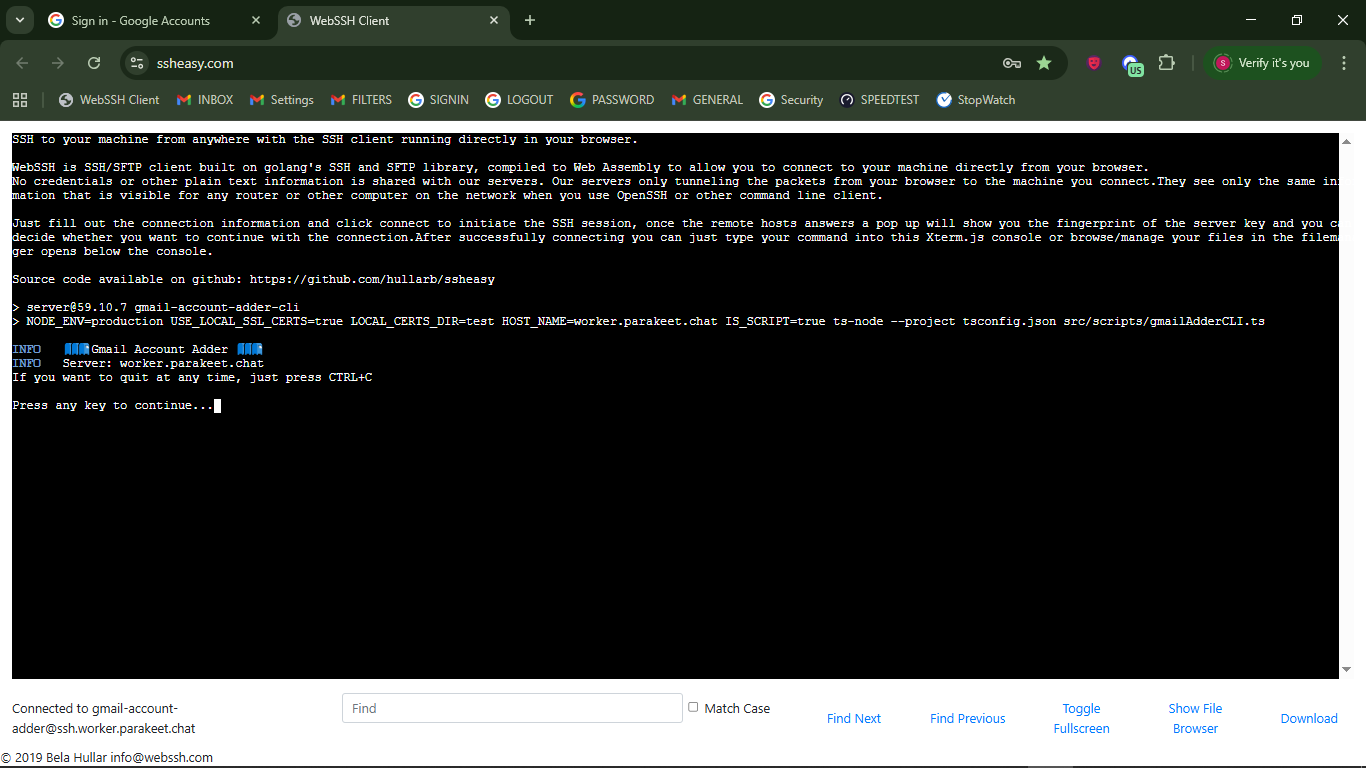
After the tool loads, you will see the page below. Press any key to continue recording your vendor ID.
-
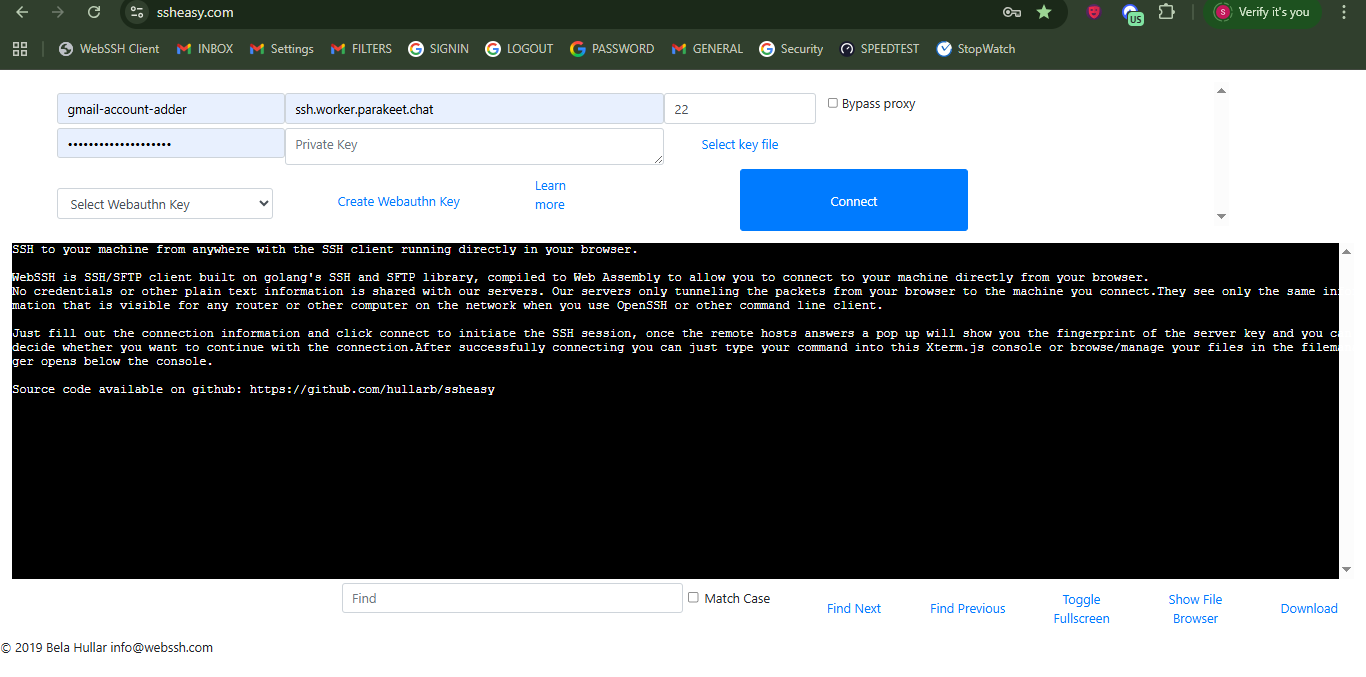
Next, enter your vendor ID (this is your first name followed by a number of how many times you're processing the accounts. Please see the example below.
-
A vendor ID is an identifier in Metabase which shows who did the forwarding process and how many times it has been. So basically, it's written as yourName_#ofEntries or simply erol_70

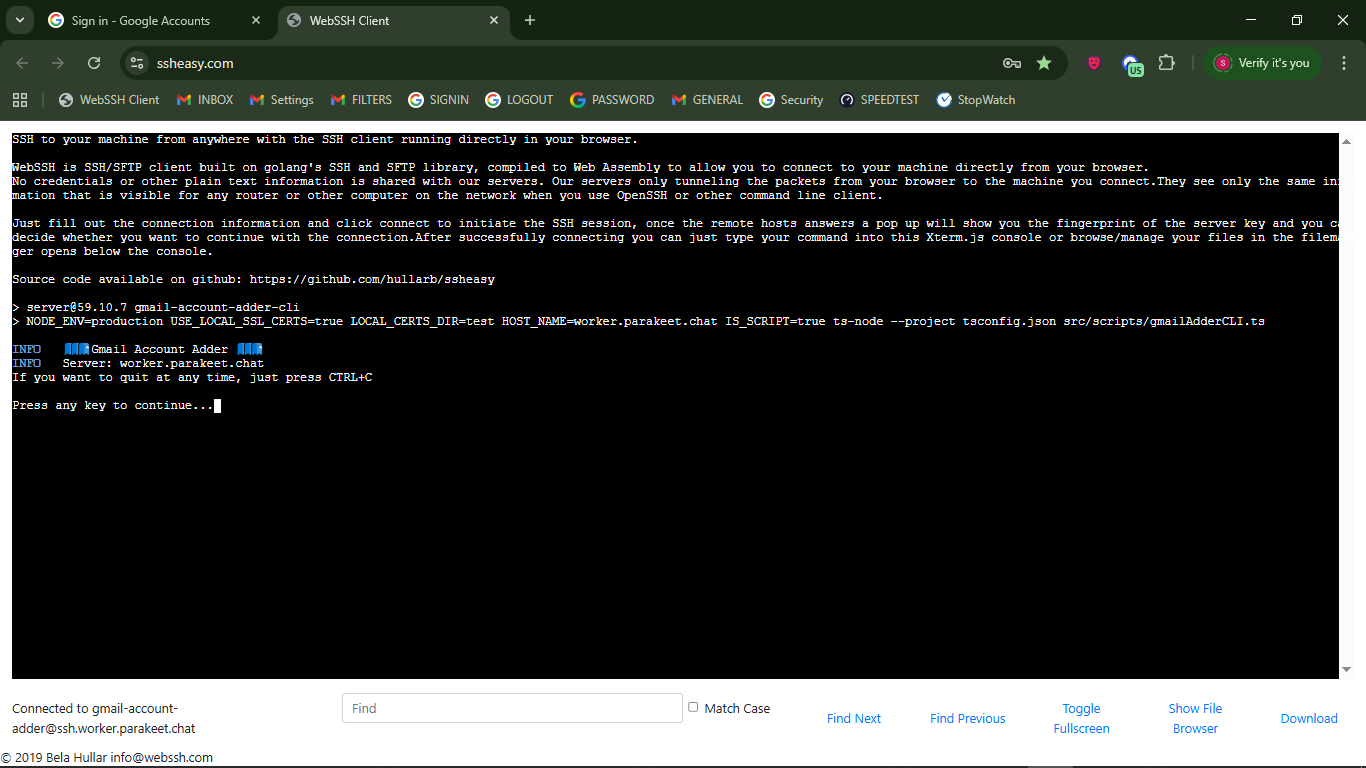

-
After entering your vendor ID and hitting ENTER, choose OHER EMAIL in the next step.
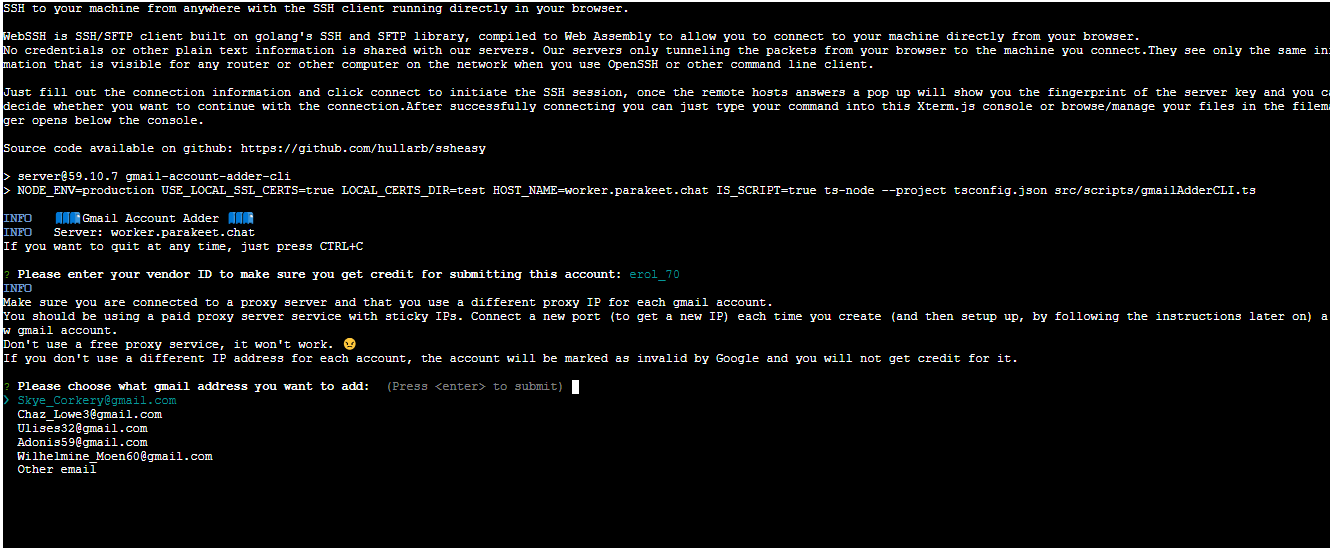
-
Enter the Gmail account email, password, and recovery address from the Excel sheet the GmailVendor provided.

-
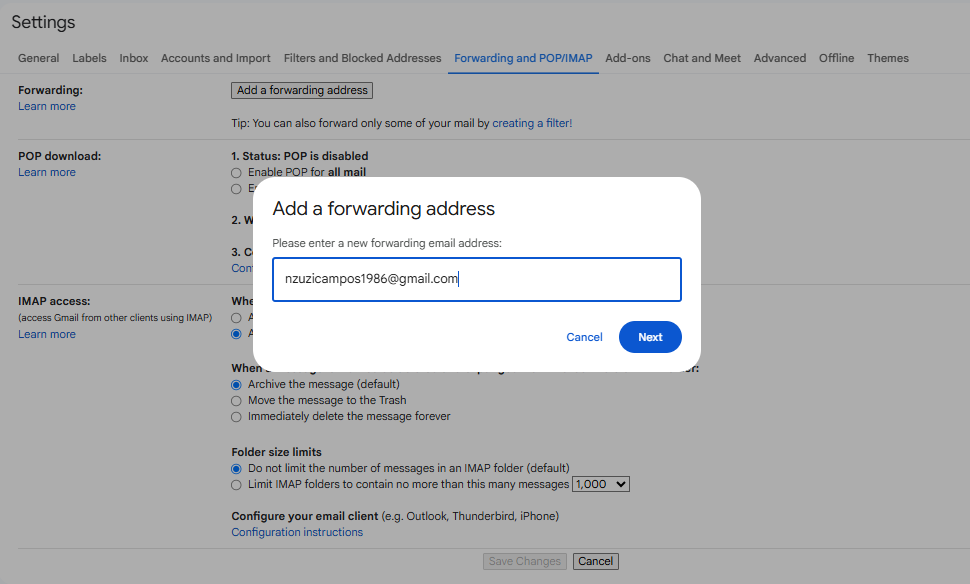
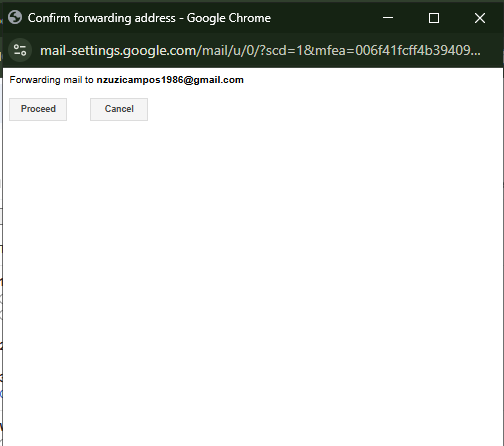
Then copy the Forwarding address provided by the tool. Then paste it into the Gmail account's FORWARDING settings.
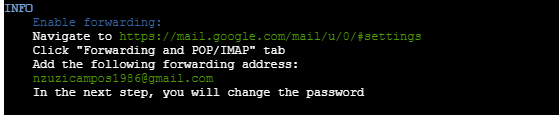
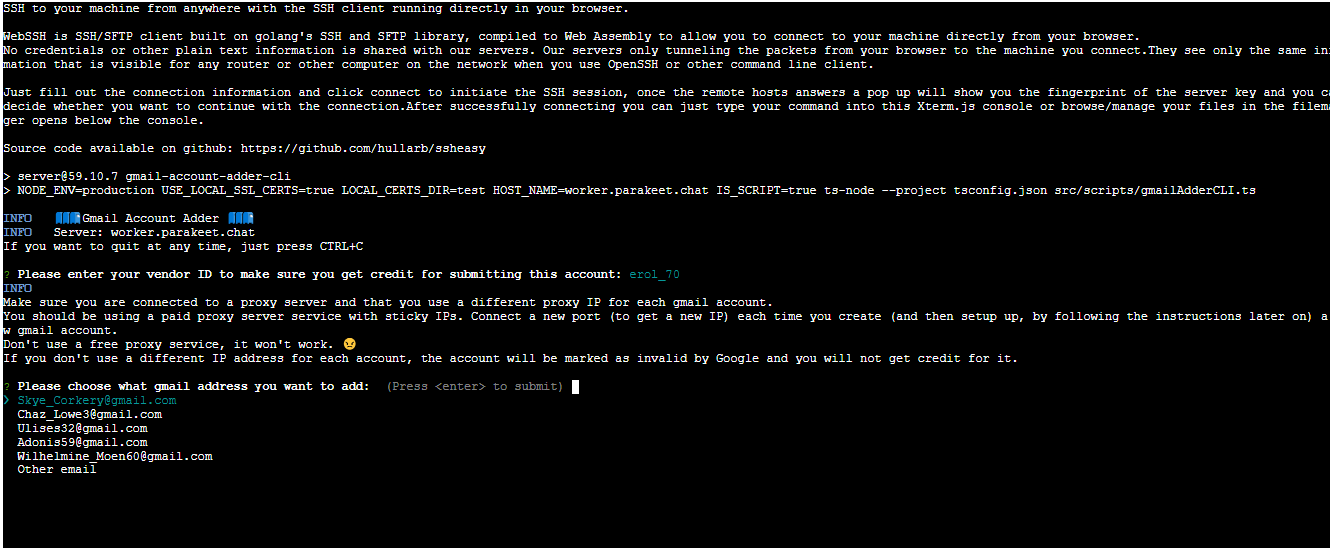

-
After successfully proceeding with setting up the forwarding address. Go back to SSHEasy, press Enter (or any key), and wait for the steps in changing the password.
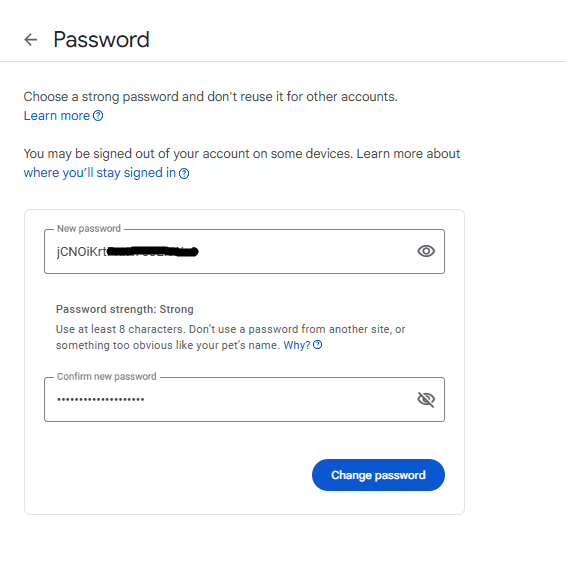
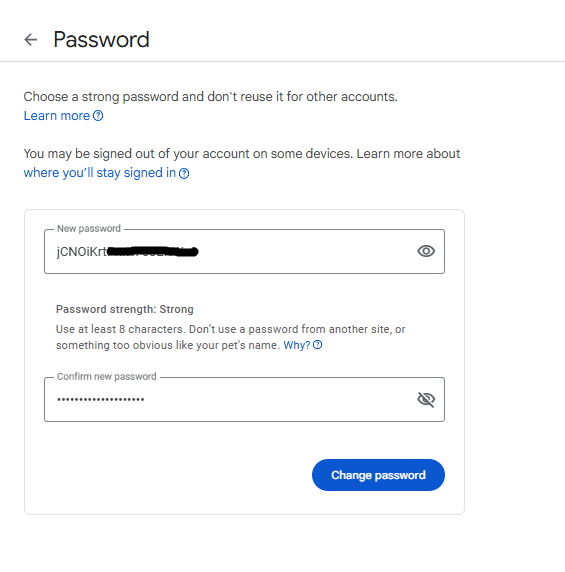
- Copy the new randomly generated password from the tool.
- Copy the link in the tool or click the direct link saved in your bookmarks to proceed with changing the account password.
- Click Change Password to finish.
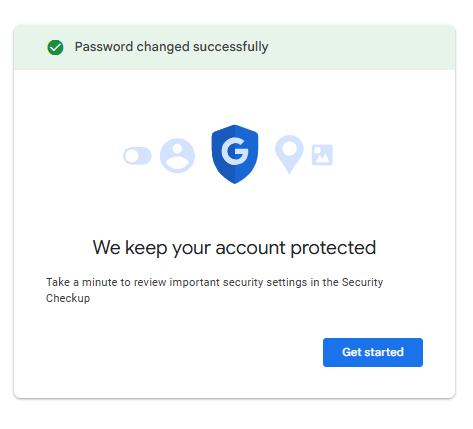
- IMPORTANT: Make sure you see the "Password changed successfully" prompt before proceeding. This ensures that the Gmail server has acknowledged, accepted, and recorded the new password.
- After the password is successfully changed, go back to SSHEasy, hit Enter (or any key), and wait for the next instructions.

-
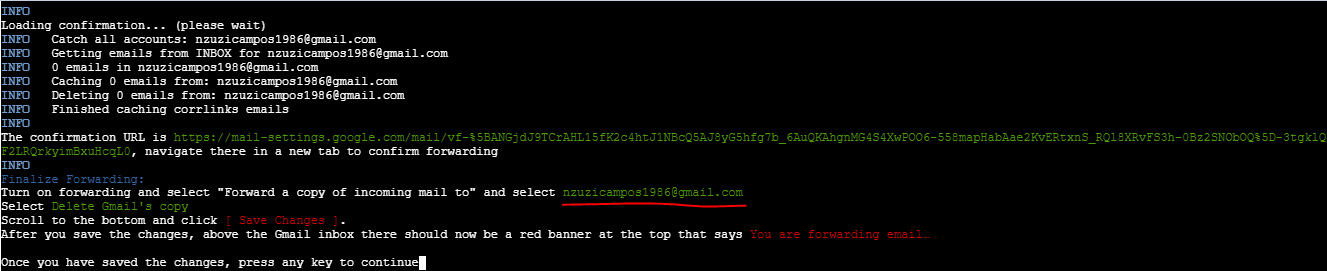
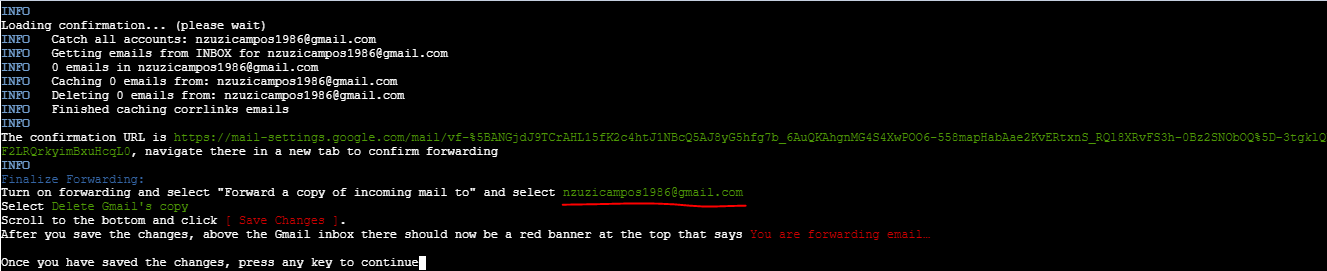
In the final stretch, copy the given URL from the tool and paste it into a new tab, and hit enter to proceed. This will send a forwarding confirmation to the forwarding address.

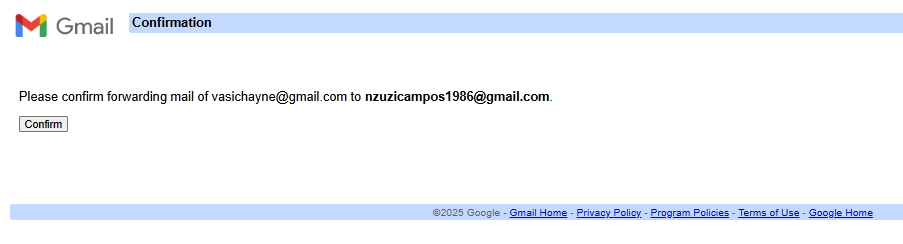
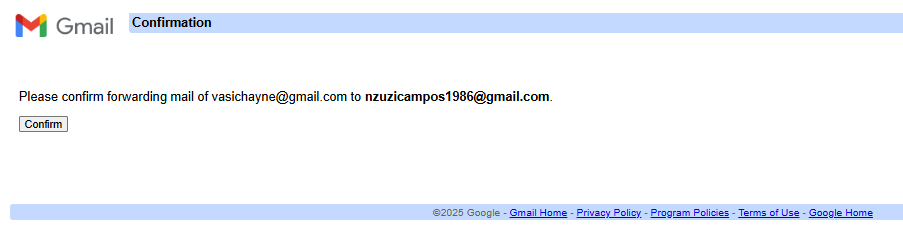
- Go back to Gmail and select the tab that has the confirmation window.
- Click Confirm.
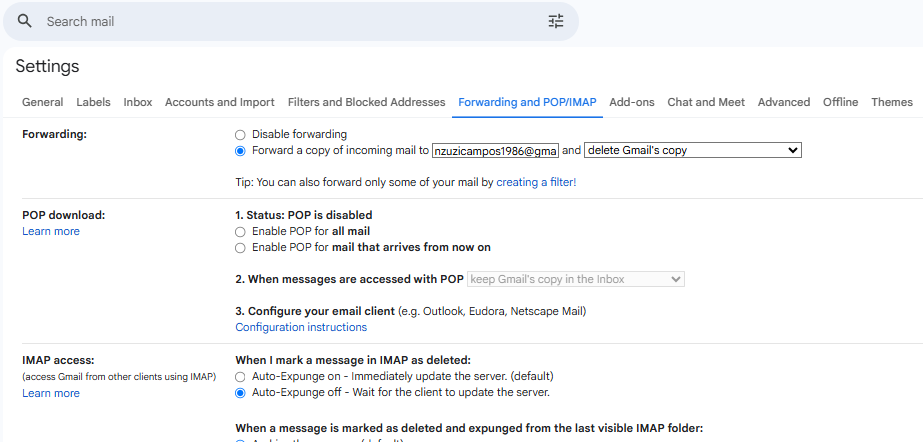
- After clicking "Confirm", go back to Gmail Forwarding settings and choose "Forward a copy of incoming mail to" and paste the copied forwarding address earlier.
- Click the dropdown on the right side and choose "delete Gmail's copy".
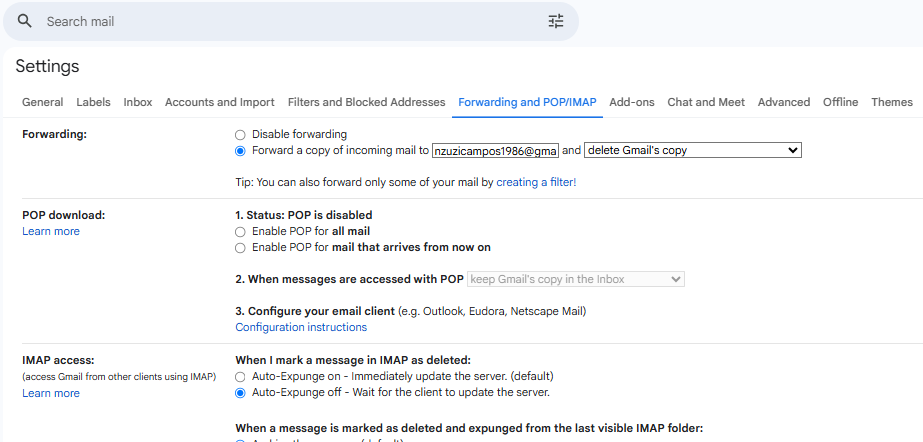
- Scroll down, and click "Save Changes".
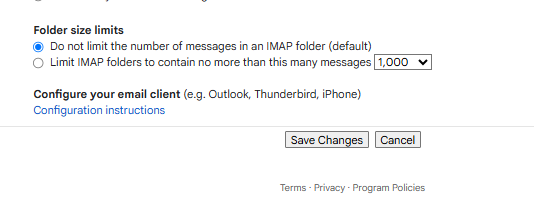
- If successful, a red banner will show up saying "You are forwarding your email to (forwarding address). This notice will end in 7 days."
- Then go back to SSHEasy, hit Enter (or any key), and wait for the forwarding confirmation to be working.

- If the forwarding is confirmed working, you will see a green checkbox beside the Gmail account that forwarding was set up.



TIPS
- If you forget the next steps, simply read the instructions in the SSHEasy tool.
- If you think you forgot to add something, you can check your Gmail account to verify if the forwarding address was added and if the admin@parakeet.chat filter was created.
- You can easily and safely navigate in Gmail; however, be careful in pressing any key or Enter in SSHEasy as it will proceed to the next step/ instructions.
- Switching IP addresses is important. Jordan and I discussed it before and decided that switching IP every 10 successfully forwarded accounts should be acceptable. This is not set in stone; future changes may apply.
- ALWAYS log out after a successful forwarding confirmation, as this can interrupt changing the PW. If the previous account isn't logged out, the password change steps will be for the previous account.
- IF you encounter a confirmation loop at the final step, but you've confirmed everything is in order, try going back to FWD https://mail.google.com/mail/u/0/#settings/fwdandpop → Disable Forwarding → Save changes, then re-enable forwarding by re-selecting the saved forwarding address → Save changes → Go back to SSHeasy and confirm forwarding is successful by running the final steps again.
NOTE
Right now, everything is done manually by doing the above steps. The entire setup is:
- Bulk purchase Gmail accounts from Vendor.
- Manually set up forwarding via Gmail and SSHeasy.
We had an attempt to automate the entire process using the SUPPORT-CLI Command BULK ADD GMAIL ACCOUNTS. I tried (Erol) to remember the steps in doing so, but I couldn't figure it out. I think it was Janno who attempted the automation by importing CSV.
These are the steps via BULK ADD GMAIL ACCOUNTS via CLI tool.
- The tool doesn't allow selecting which local file to import to proceed with bulk adding Gmail accounts for inmate mailbox connections.
- After choosing "Yes", it immediately disconnects from the Database.
? Choose Option BULK ADD GMAIL ACCOUNTS
INFO Overview Add gmail accounts for inmate mailbox connections. For now it involves a lot of manual steps. We will automate this in the future.")
Safety Disclaimer: Before getting started make sure you know how to run two browsers that are isolated from your personal Google accounts ⚠️ You don't want Google to think you're a bot and block your personal account! If you don't have that set up, you can also close all your browsers and make sure no background apps are running that connect to Google, then connect to VPN, and start a private browser session. Remember to close all the windows and disconnect the VPN when done and before starting any personal stuff again.
Erol: Use your usual Linux VM, do NOT run your personal gmail account in the VM and use a VPN. If you don't know how to do this, ask Jordan for instructions.
? Proceed? Yes
INFO Select File
Read account info from which file (inside /emails dir)?
DEBUG Disconnecting from database
ERROR Error ENOENT: no such file or directory, scandir '/parakeet/source/emails/' details: { errno: -2, code: 'ENOENT', syscall: 'scandir', path: '/parakeet/source/emails/' }
npm ERR! Lifecycle script
customer-supportfailed with error:npm ERR! Error: command failed
npm ERR! in workspace: server@59.10.x
npm ERR! at location: /parakeet/source/server
Connection to ssh.worker.parakeet.chat closed.
PROS and CONS
Pro - When adding it manually, we can identify which Gmails fail in logging in, ask for 2FA Auth (unusable), or require 2FA setup. This is beneficial for us, as we can request a replacement from the vendor (within a period usually 18-48 hours). When automation can identify and show a summary of successfully processed accounts would be very good.
Con - The manual process can be time-consuming, usually takes between 3-5 mins/ account (or longer), and the speed depends on the computer's performance (based on experience at least 16GB RAM since Chrome is a memory hogger, internet stability plus connection speed, and the selected VPN (based on experience, some VPN even labeled (fastest) sometimes make the internet connection slower/ unstable.
A dedicated person can help with the setup. However, since it's time-consuming, the worker might ask for fair compensation. We had a GmailVendor who also became our GmailAdder, however, lately, they weren't doing the process correctly, causing issues with the accounts. I (Erol) tried paying people, but they quit after completing a batch of emails with the reasoning, it's too technical, not confident they can continue, and asking for higher compensation (still reluctant to continue).
Congratulations! You've successfully set up Gmail forwarding.